Getting Started with DOL
Log into DOL
When you have received your Login Name and password via email from TRIAX you are ready to sign in and use the design tool: Go to the DOL website page at: www.triaxdesignonline.co.uk/V2
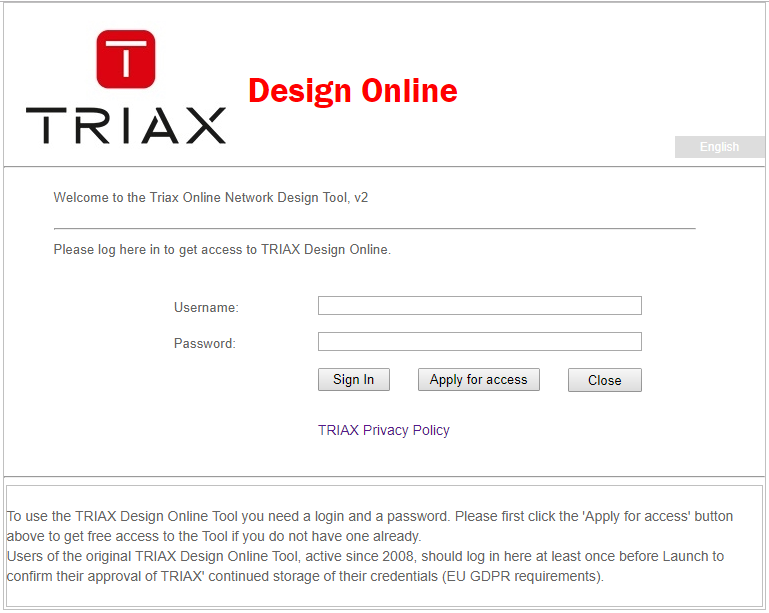
First time Login
Enter the Username you have received from TRIAX into the upper text field and the Password you have received from TRIAX into the lower text field.
Then click the Sign In button.
NOTE: Always use the username and password issued by TRIAX to sign in for the first time.
Passwords are case sensitive! For security reasons, if an incorrect password is entered more than four times the account will be locked. Should this occur please send an e-mail to designonline@triax.com with a request to unlock your account again. A new password will also be issued.
TIP: You may enter a new password of your choice and update your other account details (username cannot be changed) at any time by selecting the Account Details link at top center on the Planner Home page.
Future Logins
If you change your password in DOL, See Planner Home Page, your old password is forgotten, and you will have to use the new password at any future Logins to DOL.
To help you remember your current password, the field Password reminder field in the Accounts Details page can be used to either write the password in clear text (only you can see this), OR write a sentence that will help you remember the new password.
After Login
Once successfully logged in, you will always be shown the DOL disclaimer. Please read the disclaimer dialog text box.
![Planner Home Page] (PlannerHomePageLoginNoDisclaimer_EN.PNG) "Alt text")
Please and left-click the I Accept button to continue. (The DOL Disclaimer text can also be read in Appendix 2 of this document.)
Now the Planner Home page will be displayed:
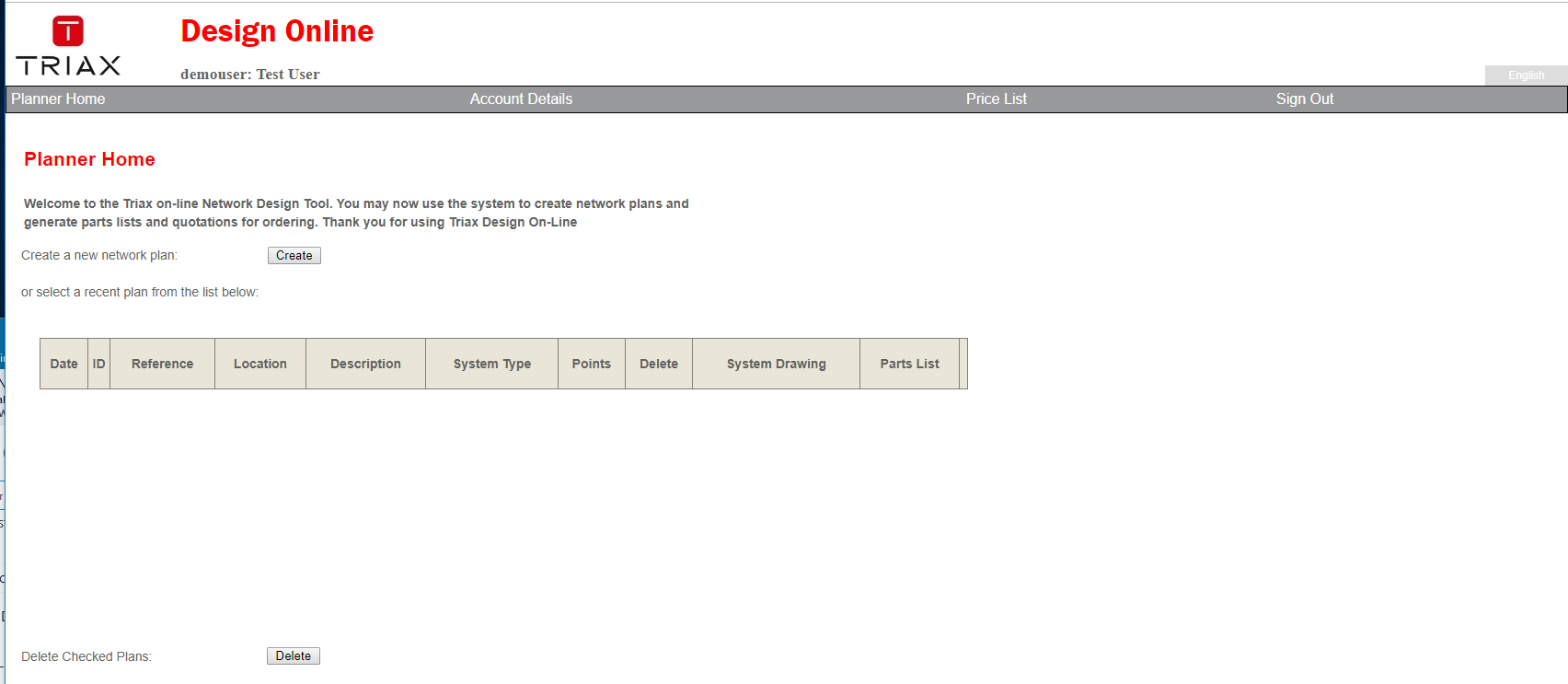
Planner Home Page
This is where you create a new Network Plan (Schematic Design) or recall and work with previously saved plans.
The above screen shot shows an empty Planner Home Page that are opened for the first time.
It is empty because no plans have been created yet.
TIP: You may enter a new password of your choice and update your other account details at any time
by selecting the Account Details link at top center on the Planner Home page